
Hide every face
without uploading
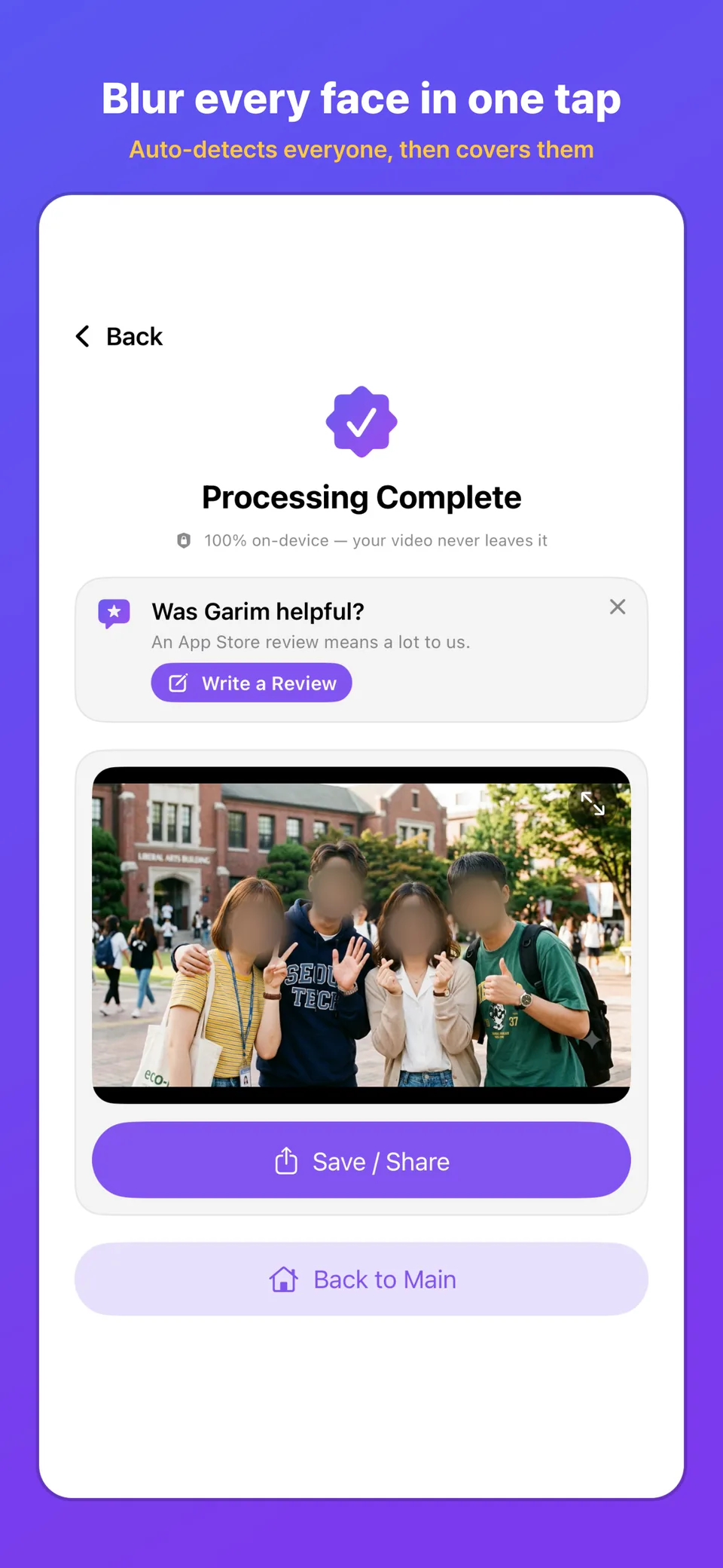
Garim finds faces in photos and video with Apple Vision on your device, then covers them with a mosaic, a blur, a sticker or a solid color. License plates and signs on screen are found too, and each text box is covered as a full rectangle. Nothing is uploaded, and one app covers iPhone, iPad and Mac.
The screens you work in
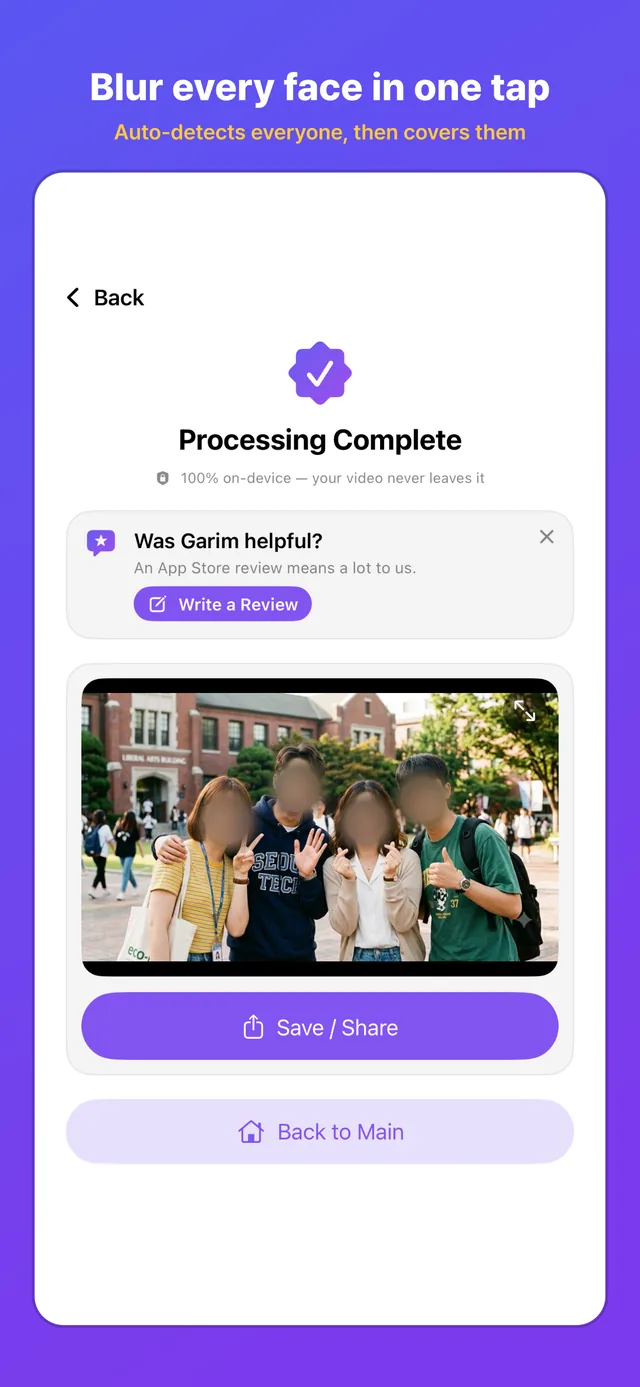
These screenshots show what Garim looks like while you work on a photo or a clip. Each one is a mode you move between.
01Every face covered in one pass 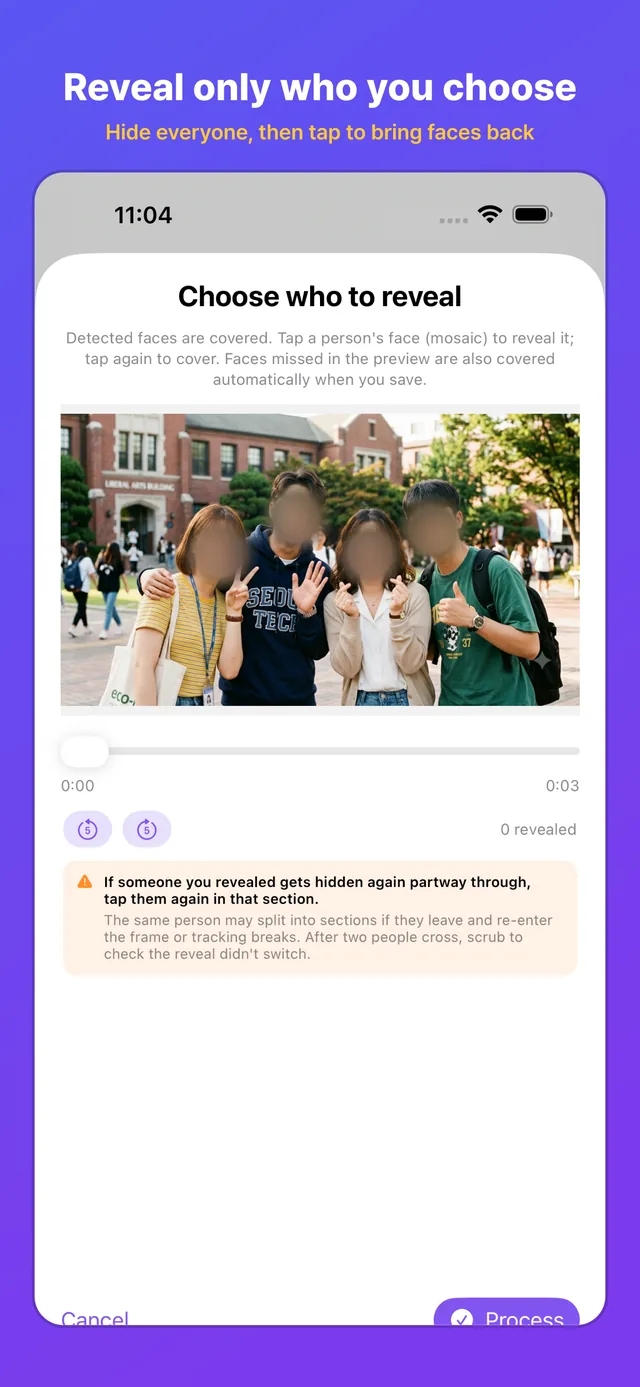
02Tap the faces that stay visible 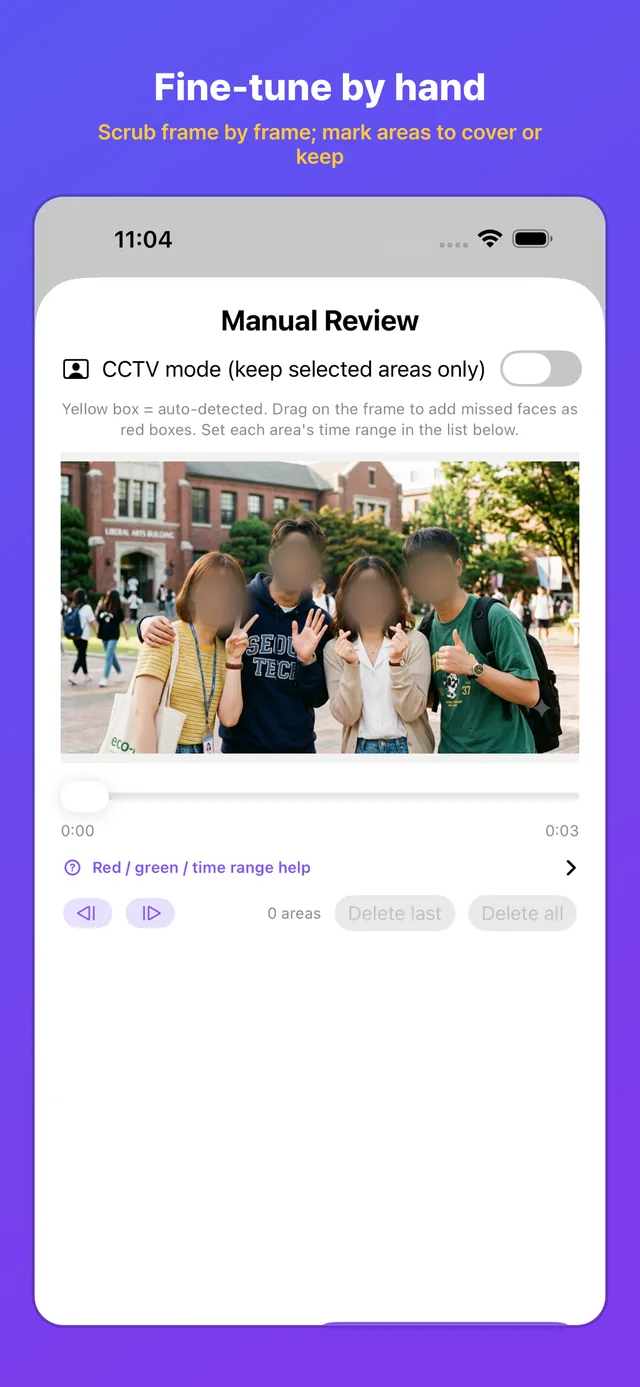
03Add a missed face on thumbnails 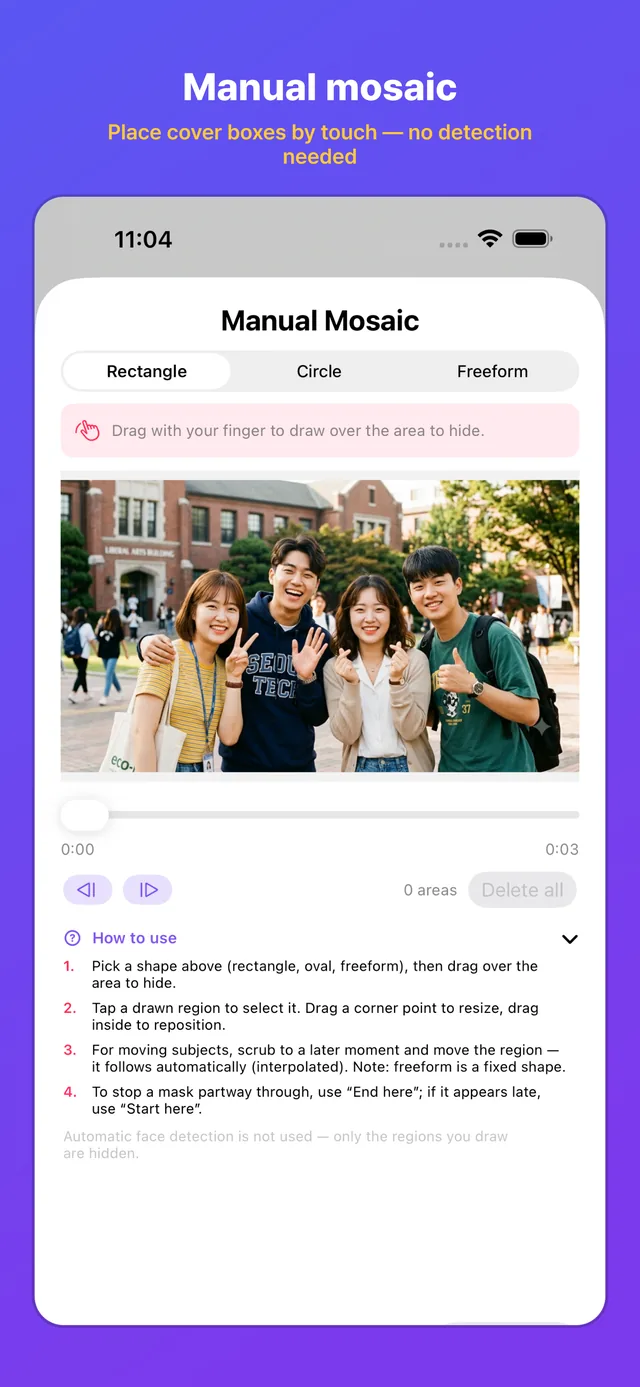
04Draw the cover, no detection 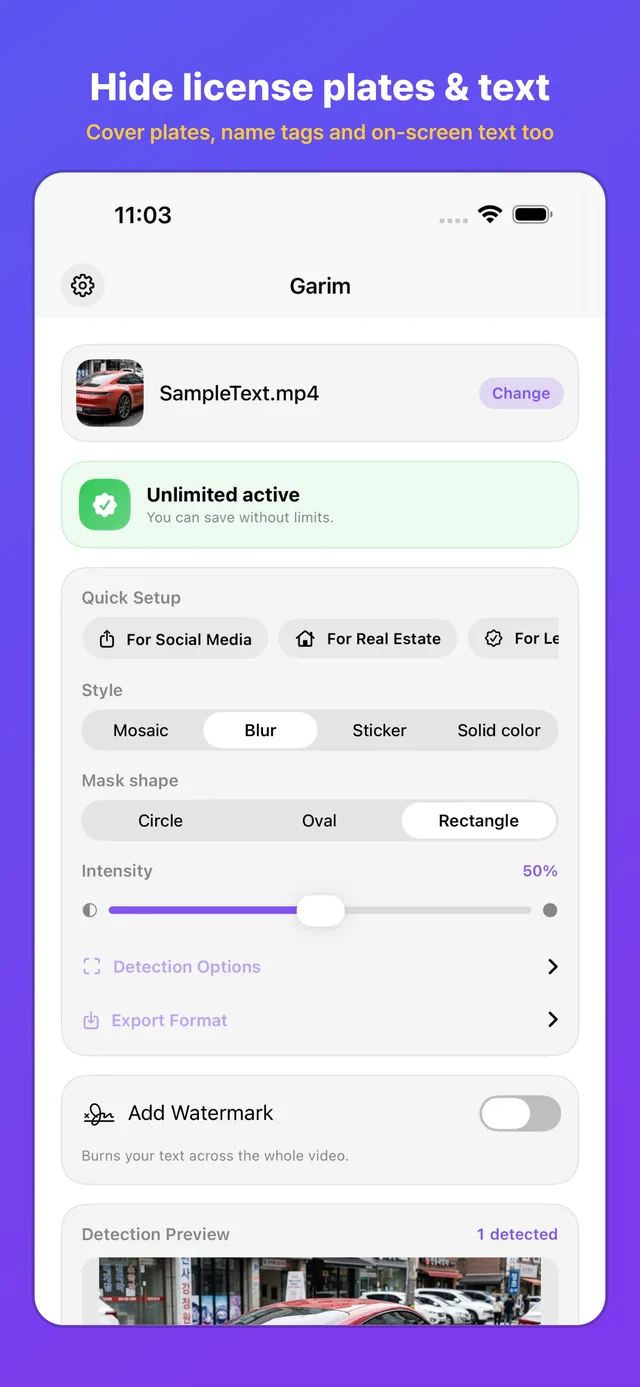
05Plates, name tags and signs 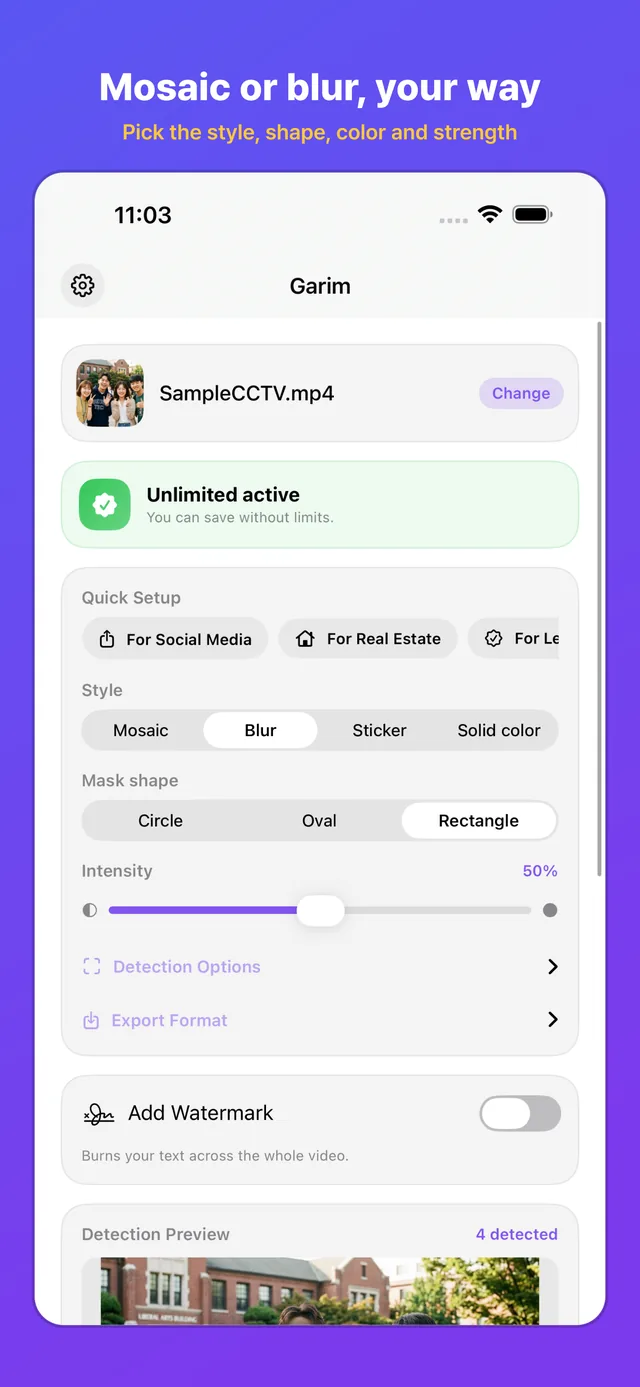
06Style, shape and strength 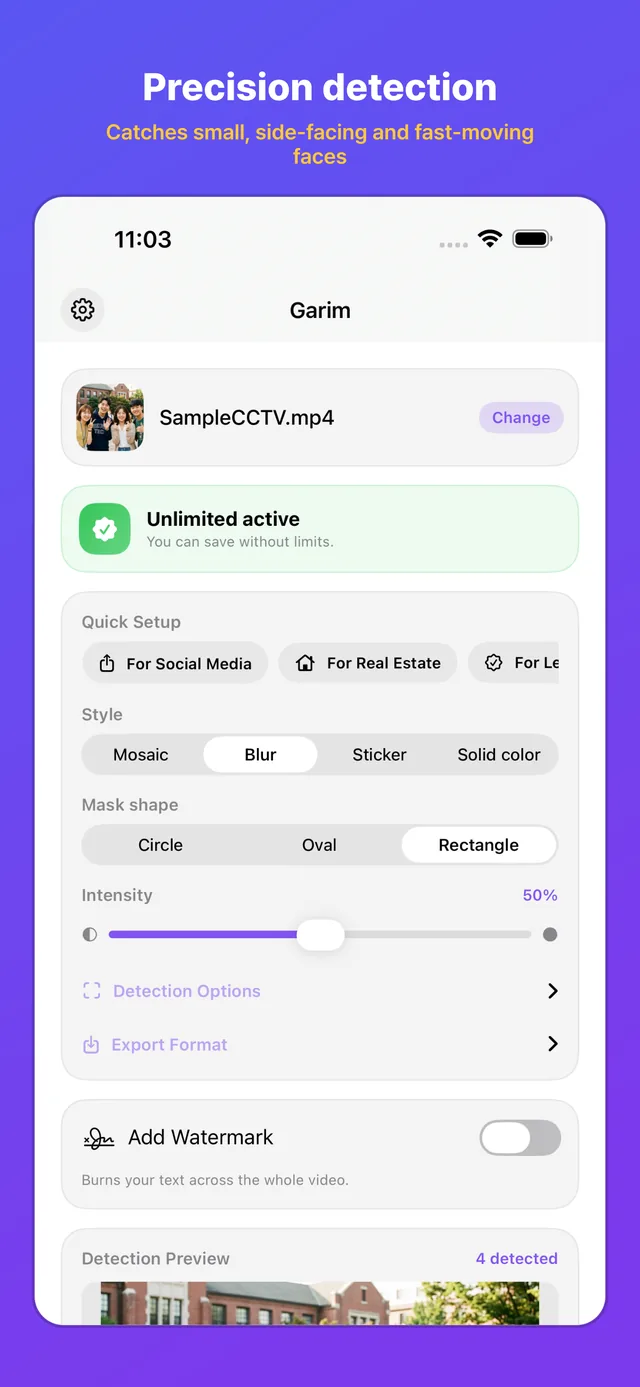
07Small, side-on or fast faces
Four ways to cover a face
All four run on the device, so the footage you are working on never has to leave it.
Hide everyone in one pass
Load a photo or a clip and Garim covers every face it finds at once. Head pose is read too, so people turned to the side stay covered.
Choose who to reveal
Hide everyone first, then tap the people who should stay visible. That person is tracked, so the choice holds through the whole clip.
Manual Review
Frame thumbnails let you add a face the detector missed and set the time range each region stays covered.
Manual Mosaic
Detection is off here. You draw rectangles, circles or a freeform outline over anything that should not be readable, such as a document on a desk.
License plates, name tags and signs
Vision text recognition finds text on screen and covers each box as a full rectangle. Dashcam clips and listing photos usually need that.
Four cover styles, three shapes
Cover with a mosaic, a blur, a sticker image or a solid color, in a circle, an oval or a rectangle. The strength slider sets how heavy it is.
One-tap presets
For Social Media sets a medium mosaic. For Real Estate blurs harder with text covering. For Legal/Evidence goes solid black. Custom keeps your settings.
Detection settings and the sample video
Raise the sensitivity slider for a crowded street, or turn on precision mode for small and fast faces. Try with a Sample Video uses a bundled clip.

When detection is not enough
Automatic detection does most of the work in one pass. These three tools cover the cases it cannot decide for you.
Hide everyone, then tap to reveal
Choose who to reveal starts from a fully covered frame and gives faces back one tap at a time. Because the person is tracked, an interviewee stays visible while the crowd behind them stays covered.
Add what was missed, with a time range
Manual Review works on frame thumbnails. You place a region over the face that was missed and set the time range it applies to, so someone who walks in late is covered only while they are on screen.
Draw it yourself
Manual Mosaic runs no detection at all. Rectangles, circles and a freeform outline let you cover a tattoo, a document or a house number that face detection would never look for.
Detection can miss a face, so play the preview and check the result before you publish anything.
Processing that stays on your device
Garim has no company server and no sign-in. Your photos and video are read, processed and written back on the same device, and the app works with the network switched off.
Apple Vision on your device
Detection runs through Apple's Vision framework on your iPhone, iPad or Mac. There is no company server behind the app and no network code that sends media anywhere, so nothing is uploaded even when you are online.
Faces are located, not identified
Vision returns the position of a face on screen, along with head pose so a profile view still counts. Garim uses those coordinates to place a cover and keeps nothing afterwards. The app never matches a face to a person and stores no face data.
Your history stays with you
The processing history and any PDF record live in the app's Application Support folder, and they go when you delete the history or the app. Your credit balance and the welcome-gift flag sync between your own devices through iCloud Key-Value Storage under your Apple Account, where no photo or video is ever sent.
No photo or video is sent off the device at any point.
There is no account, no e-mail and no password to create.
No advertising, analytics or tracking code is built into the app.
iOS 17, iPadOS 17 or macOS 14 and later. 12 languages: Korean, English, Japanese, Simplified Chinese, Traditional Chinese, German, French, Spanish, Portuguese (Brazil), Italian, Russian and Turkish.

What you get when you export
The export keeps the footage you started with and adds only the cover you chose. You can watch the result inside the app before anything is saved.
Audio, resolution and length as they were
The original audio is kept, and the export holds the original resolution and the full length of the clip. You can write MOV or MP4, and the HEVC toggle is available to everyone. A custom text watermark can be baked across the video when you want your own credit line on it.
A one-page PDF record
Each job can produce a one-page PDF listing the date and time, the source and output file names, the processed length, the style and strength, the mode used, the highest number of faces detected at once, how many manual regions you added, whether audio was preserved and the app version. It is a log you generate yourself, not a certificate issued by anyone.
Batch for a whole set
Queue several photos and videos and let them run with the same settings, which is what a listing shoot or a day of field footage usually looks like. Batch is part of Garim Pro.
The result plays back in the app first, so you can change the strength or the style and export again before saving.

What is free and what you pay for
Photos are free to process and save. Video is the part that uses credits or a subscription, and Garim itself is free to download.
Free
Free
Photos free, video preview free
- Photos are processed and saved for free, with a small brand watermark.
- The first 30 seconds of any video are processed free as a preview.
- The first full-length save is free once, with the watermark baked in.
- The bundled sample video does not use up that free save.
- Tapping the welcome banner on the home screen grants 3 credits, once.
Credits
From $0.99
One full-length video costs 1 credit
- Saving a video at full length without a watermark costs 1 credit.
- A video you have already paid for can be saved again for free.
- An export you cancel, and one that fails, are not charged.
- Credits are a one-time consumable purchase, spent as you save.
Garim Pro
$9.99 / month
$19.99 / year
Auto-renewing subscription
- Unlimited video saves, with no credits involved.
- Photos are saved without the brand watermark.
- Batch processing for a queue of photos and videos.
- Cancel at any time in your Apple Account settings.
- The App Store charges in your local currency, and the price shown there is the one that applies.
- A subscription renews automatically unless it is cancelled at least 24 hours before the current period ends.
- One purchase or subscription works on iPhone, iPad and Mac under the same Apple Account.
- Refunds are handled by Apple through the App Store.
Questions people ask before they buy
What can I do without paying?
Do I pay again for the same video, and what if an export fails?
Do my photos or videos leave the device, and do I need an account?
What does Garim Pro add, and how do I cancel it?
A face was missed. What should I do?
What is in the PDF record, and where is the history kept?
Documents and contact
Questions, bug reports and feature requests are welcome at krausehaileydanielle@gmail.com. Purchases and refunds are handled by Apple, so a refund is requested through your App Store purchase history.