







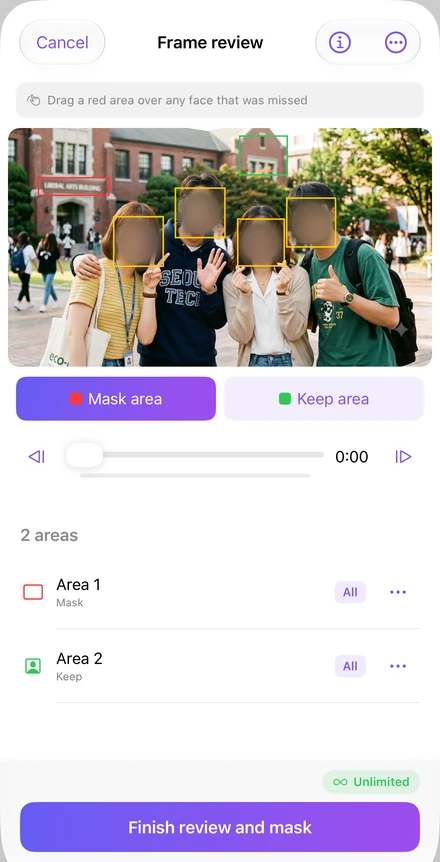
Frame review
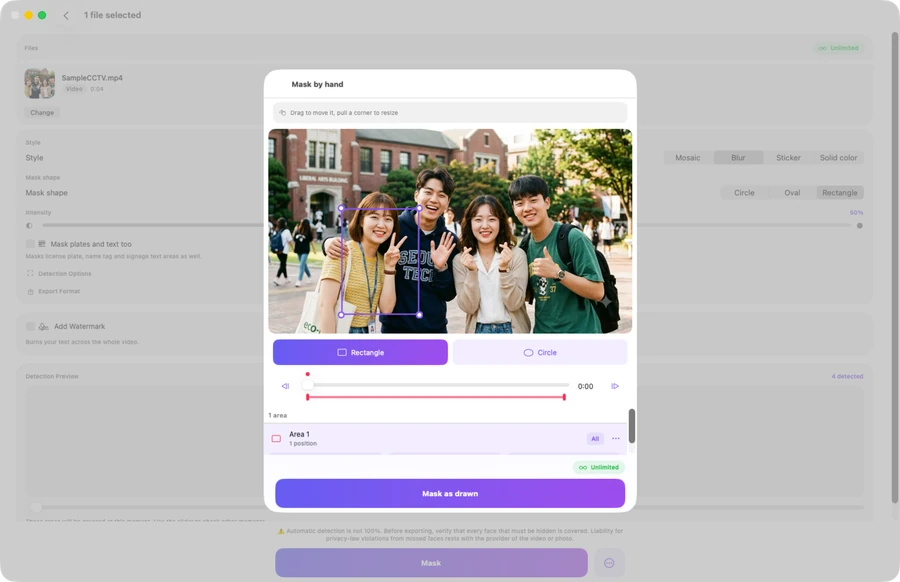
Step through the clip and set a time range for each area.
Add a red area over anything missed.
Add a green area for what should stay visible.
Auto pixelate & redact on your device
All processing stays on your device, keeping your photos and videos private. Keep the people you choose in view.
iPhone · iPad · Mac


Photos processed and saved free
On-device processing, no account
iPhone, iPad and Mac in one purchase
12 languages
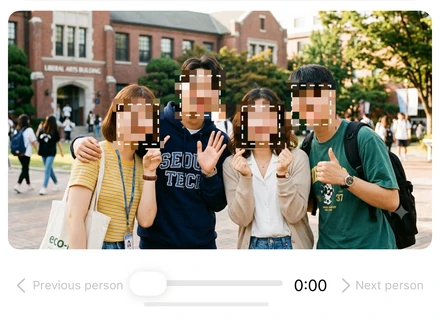
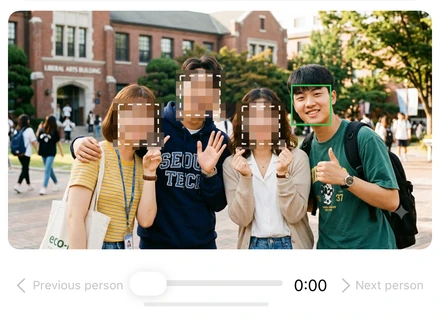
01 Choose who stays visible
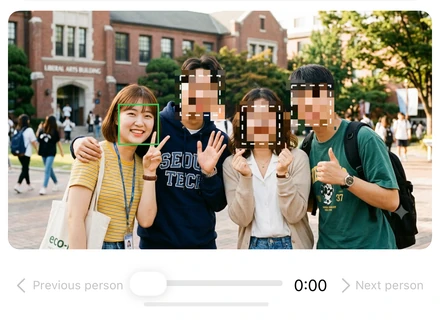
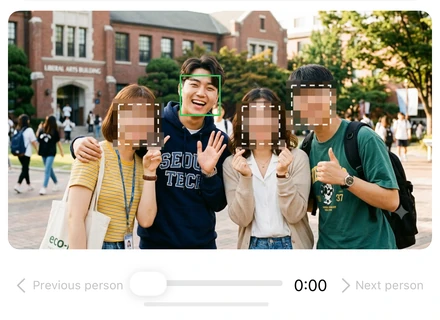
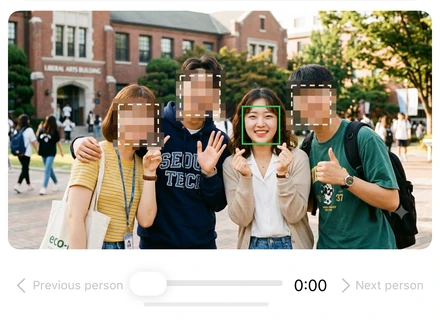
Start with faces covered. Tap a person’s mosaic to reveal them; tap again to cover. Garim follows their position through the video.
Tap any of the four faces or use the person buttons.
02 Style, shape and strength in Garim
Choose the style, shape and strength. Fine-tune a video with Frame review or Mask by hand.

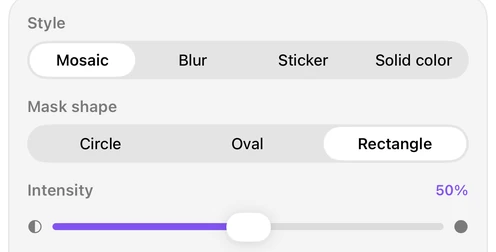
Each block holds the average colour of the pixels beneath it.
Gaussian blur softens the selected area.
Your own image or an emoji covers the area.
The selected colour fills the area.
Step through the clip and set a time range for each area.
Add a red area over anything missed.
Add a green area for what should stay visible.
03 Inside Garim
From the first detection to the saved file. Open a topic to see how Garim applies the cover.

Apple Vision finds the areas to cover. Core Image draws the covers, and AVFoundation reads and writes video. Garim uses Apple’s frameworks, with no company server or cloud AI.
Face detection and covering work with the network off. Photos and videos stay on the device.
Apple Vision locates face rectangles. High sensitivity adds a search in smaller tiles; Max adds a centre tile and runs the tile search on every frame. Overlapping detections are merged.
For front and profile faces that face detection misses, body pose estimates the head area from the nose, eyes and ears, and Garim covers it too.
For plates, name tags and signs, text detection uses Korean and English. Garim uses only the positions of the text boxes and covers each as a full rectangle. Precision mode adds more detection work, padding and smoothing.
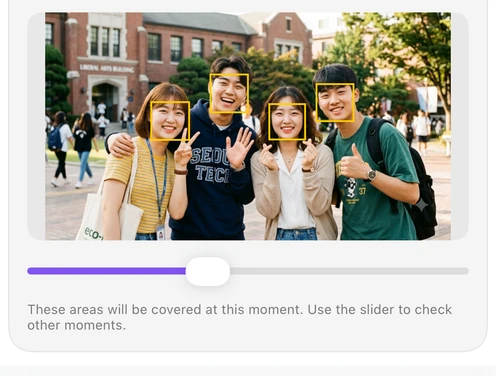
Vision returns positions. Garim follows people by position and motion, without matching their appearance or identity. No face data is stored.
In the analysis pass, every decoded frame gets a full-frame face search. Tile and pose searches run at the selected sensitivity; text detection runs on every frame when enabled.
Predicted position and box overlap link detections into tracks. Interpolation fills short gaps of 0.7–1.1 seconds, or 1.2 seconds in precision mode. Tracks extend 0.3–0.6 seconds at each end, and their boxes are smoothed over time.
In the rendering pass, Garim applies the tracked covers to every frame and writes a new video. The original audio is added back without re-encoding.
The face box expands by 12% on each side for video and 10% for photos. Circles and ovals enclose the box’s corners; their edges are anti-aliased rather than feathered.
Mosaic block size follows the largest covered area. Its width ÷ (10 − 6 × strength) gives about 10, 7 or 4 blocks across the largest covered area at 0%, 50% or 100% strength. Every block uses the exact average colour of its pixels.
Blur uses a Gaussian radius of face width × (0.10 + 0.15 × strength), or 17.5% of face width at 50% strength. Solid colour fills the area with the chosen colour; stickers keep the proportions of your image or emoji.
The cover is edge-clamped before averaging or blurring. HDR video is processed in its HLG/PQ values; an HDR photo receives a new brightness map calculated from the covered result.
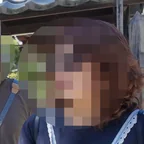
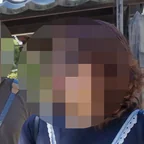
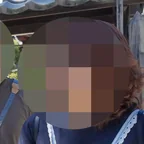
Block sizes in the original 1920 × 1080 image.
The saved photo or video is flat, with no removable mask layer. Video keeps its pixel size and frame rate, using H.264 by default, optional HEVC, or 10-bit HEVC for HDR.
Photos are saved as PNG or, for HDR sources, HEIC. Saved photos carry no EXIF or GPS metadata from the source.
Garim reads a temporary copy of the selected video and saves the result as a new file. Temporary files are cleared when a job finishes or is replaced.
History keeps the result, its PDF record and a thumbnail until you delete it. It does not keep the original.
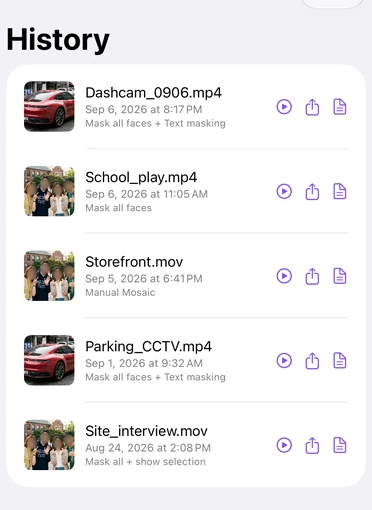
Select photos and videos through the system file importer, including several at once. App Sandbox limits access to the files you select. A save panel writes the result as a new file.
Mac uses the same processing engine and the same purchase as iPhone and iPad.
04 MOV · MP4 · HEVC · PDF
Save video at its original resolution and full length, with the original audio. HDR video stays HDR. Each job can have a one-page PDF record.
The cover becomes part of the image pixels.
The original stays as it was.
iPhone · iPad · Mac
The same engine and purchase on iPhone, iPad and Mac. Select photos and videos in Finder, work in a wide editor, and save a new file.
05 Garim
Photos are free to process and save. Video is the part that uses credits or a subscription, and Garim itself is free to download.
Photos free, video preview free
$0
Prices above are from the US App Store, and the purchase screen shows the final price.
One full-length video costs 1 credit
From $0.99
Prices above are from the US App Store, and the purchase screen shows the final price.
Auto-renewing subscription
$9.99 / month
$19.99 / year
A subscription renews automatically unless it is cancelled at least 24 hours before the current period ends.
Prices above are from the US App Store, and the purchase screen shows the final price.
One purchase or subscription works on iPhone, iPad and Mac under the same Apple Account.
Refunds are handled by Apple through the App Store.
iOS 17, iPadOS 17 and macOS 14 or later. Garim supports 12 languages, and the same Apple Account carries your purchase across iPhone, iPad and Mac.
Select up to 30 photos and videos with the same settings. Photos are free; saving each video uses 1 credit, or no credits with Garim Pro.
Your credit counters, first free-save status and gift-claim status sync through your own iCloud account. Processing history stays on the device. Photos, videos and face data are not part of that sync.
On photo results, precise cover follows the outline of the person or object you tap. Tap again to undo. Available on iOS 27, iPadOS 27 and macOS 27, with a one-time Apple Vision model download.
Questions, bug reports and feature requests are welcome at krausehaileydanielle@gmail.com. Purchases and refunds are handled by Apple, so a refund is requested through your App Store purchase history.
krausehaileydanielle@gmail.com