
Convert images
without uploading
convert it! changes the format, the size and the metadata of a picture on your own device. It converts JPG, PNG, HEIC, WebP and TIFF, saves to PDF, covers faces and strips EXIF. The app makes no network calls.
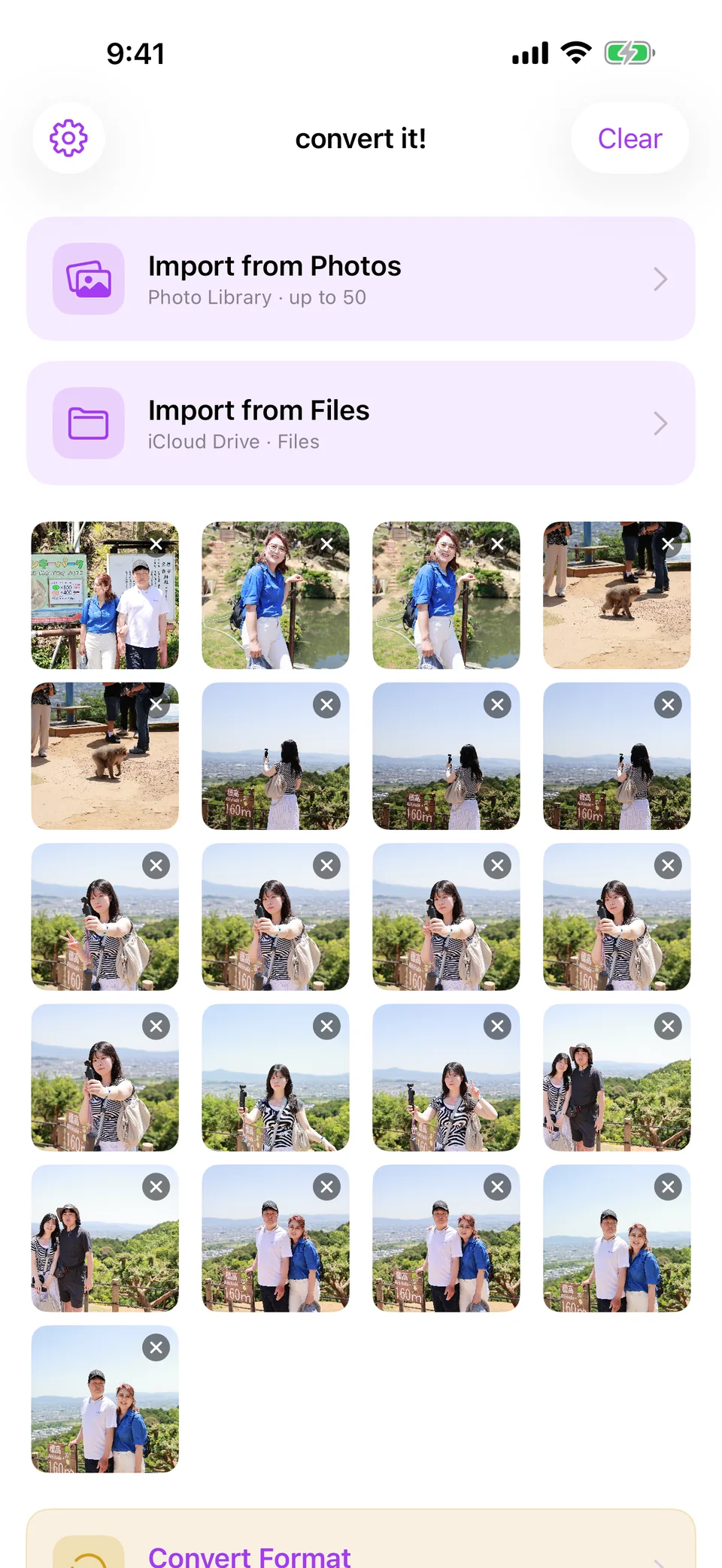
The six formats convert it! handles
Choose JPG, PNG, HEIC, WebP, PDF or TIFF as the output and every picture in the run is written in that format. PDF and TIFF can also collect a run into one multi-page file.
Quality for JPG, HEIC, WebP
Those three formats take a quality setting. PNG, TIFF and PDF are written without one, so the slider does not appear when you pick them.
Size estimate before saving
The convert screen shows the output size the current settings will produce, and the result screen shows how far the files came down from the originals.
Resize by percentage
Keep the original dimensions or scale anywhere from 10 % to 100 %. The pixel size of the result is shown under the slider while you move it.
PDF is a save format only. The app opens image files, so a PDF cannot be brought in, and there is no field for asking the app to hit an exact number of megabytes.
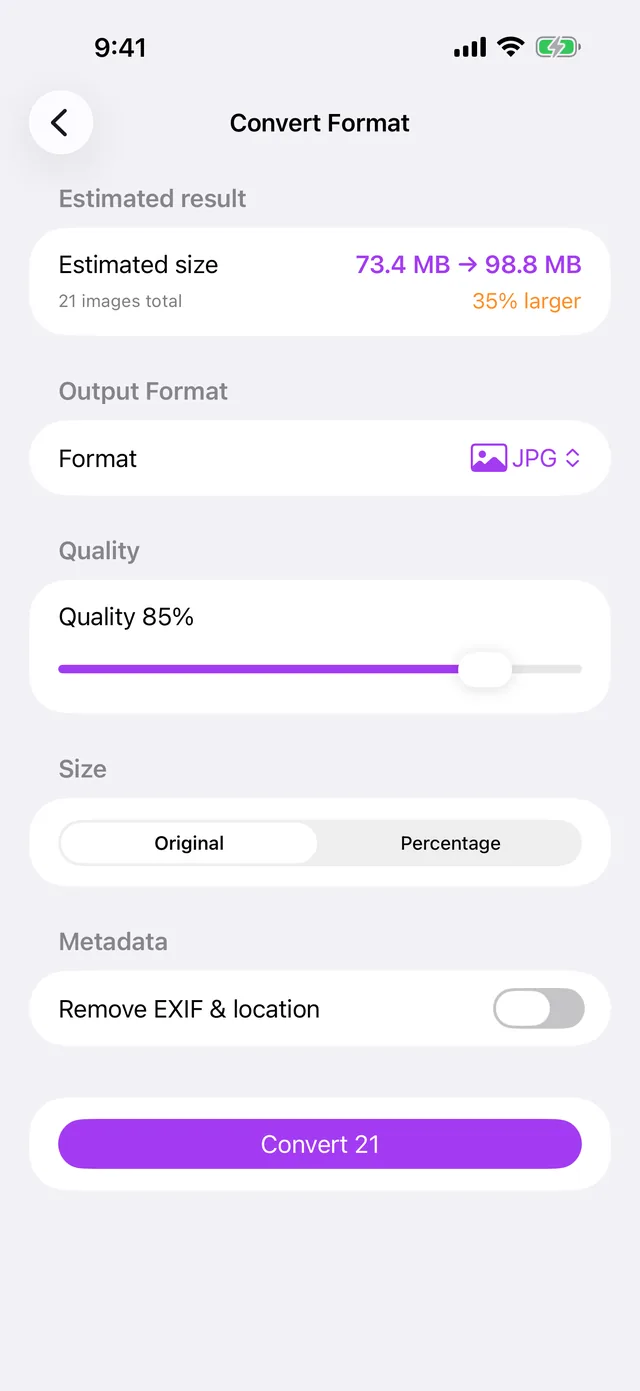
Three ways to cover a face
Apple Vision finds where the faces are in a picture and the app covers each one. Face mosaic has its own screen, and one run covers every picture you imported.
Mosaic, Blur or Black box
Pick one of the three covers. Mosaic and Blur keep the texture of the photo underneath, while Black box paints the area over in flat black.
Located, never identified
Vision returns the rectangle each face sits in. The app does not work out who anyone is, and no face data is created, stored or sent anywhere.
Look at the result yourself
A face turned away from the camera or hidden behind someone can be missed. Check the output before you send it, and run the photo again if one was skipped.
Vision runs inside the app and only locates face rectangles. Nobody is recognised or identified, and the app has no network code that could upload anything.
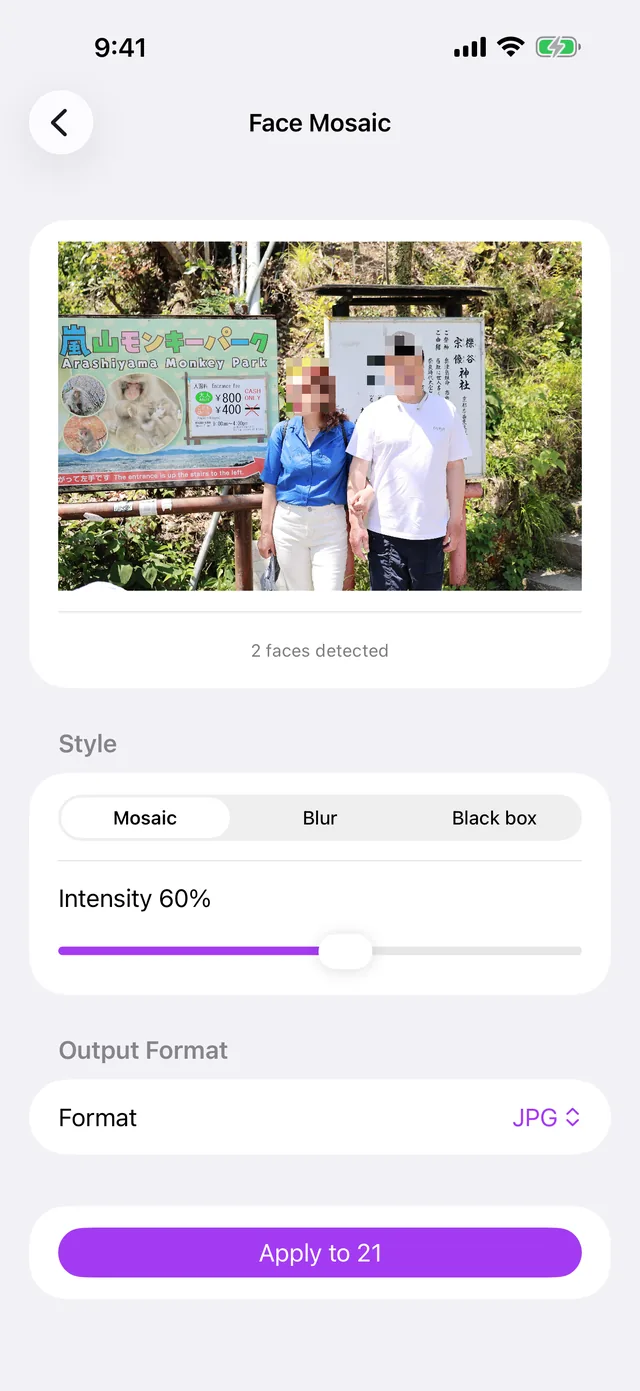
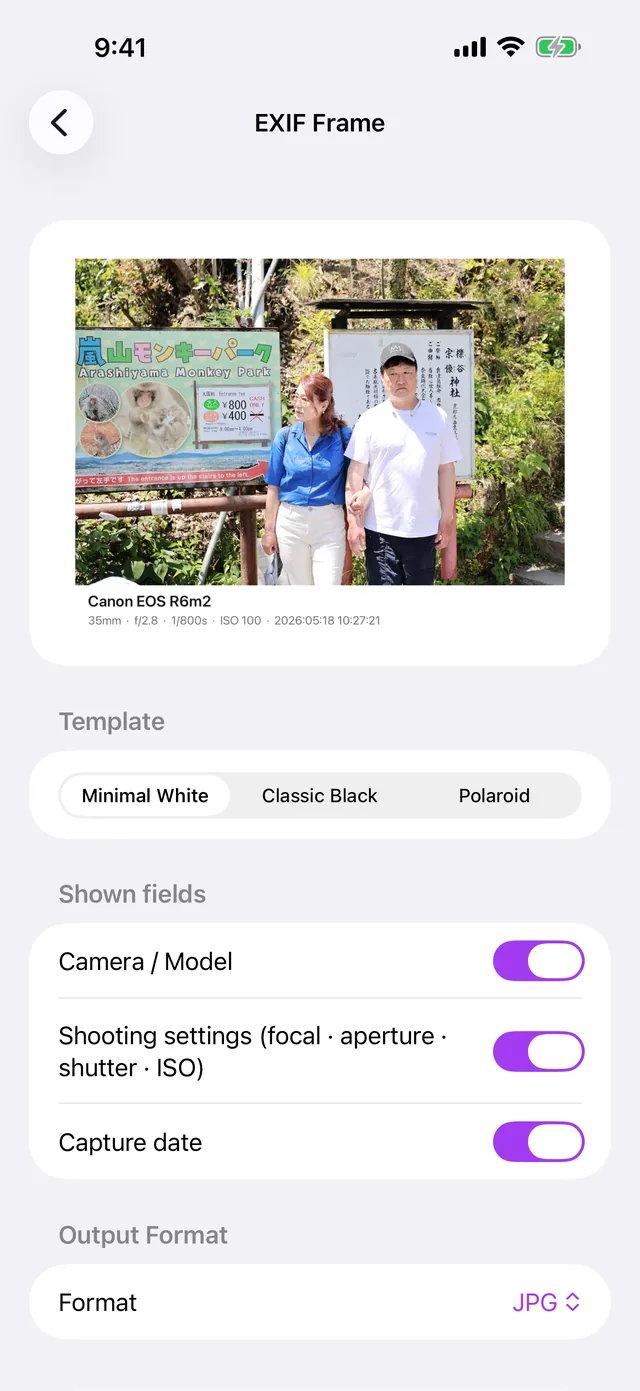
A frame built from the photo's own EXIF
The EXIF frame places the picture on a card and prints the camera data that is already in the file beneath it. Three frames are available.
Three frame styles
Minimal White, Classic Black and Polaroid. Each one sets its own border, background and layout for the line of camera data.
Camera data from the file
Maker and model, lens, focal length, aperture, shutter, ISO and the capture date come from the file's EXIF. Camera, settings and date can each be switched off.
Keep the EXIF for the text
The card is still drawn without EXIF, but no camera data prints under it. Frame the original first, then strip metadata in the convert screen for a clean copy.
A file whose EXIF has been removed, or that never carried camera data, prints fewer lines in the frame. The frame reads the file you picked and nothing else.
Many pictures in one pass
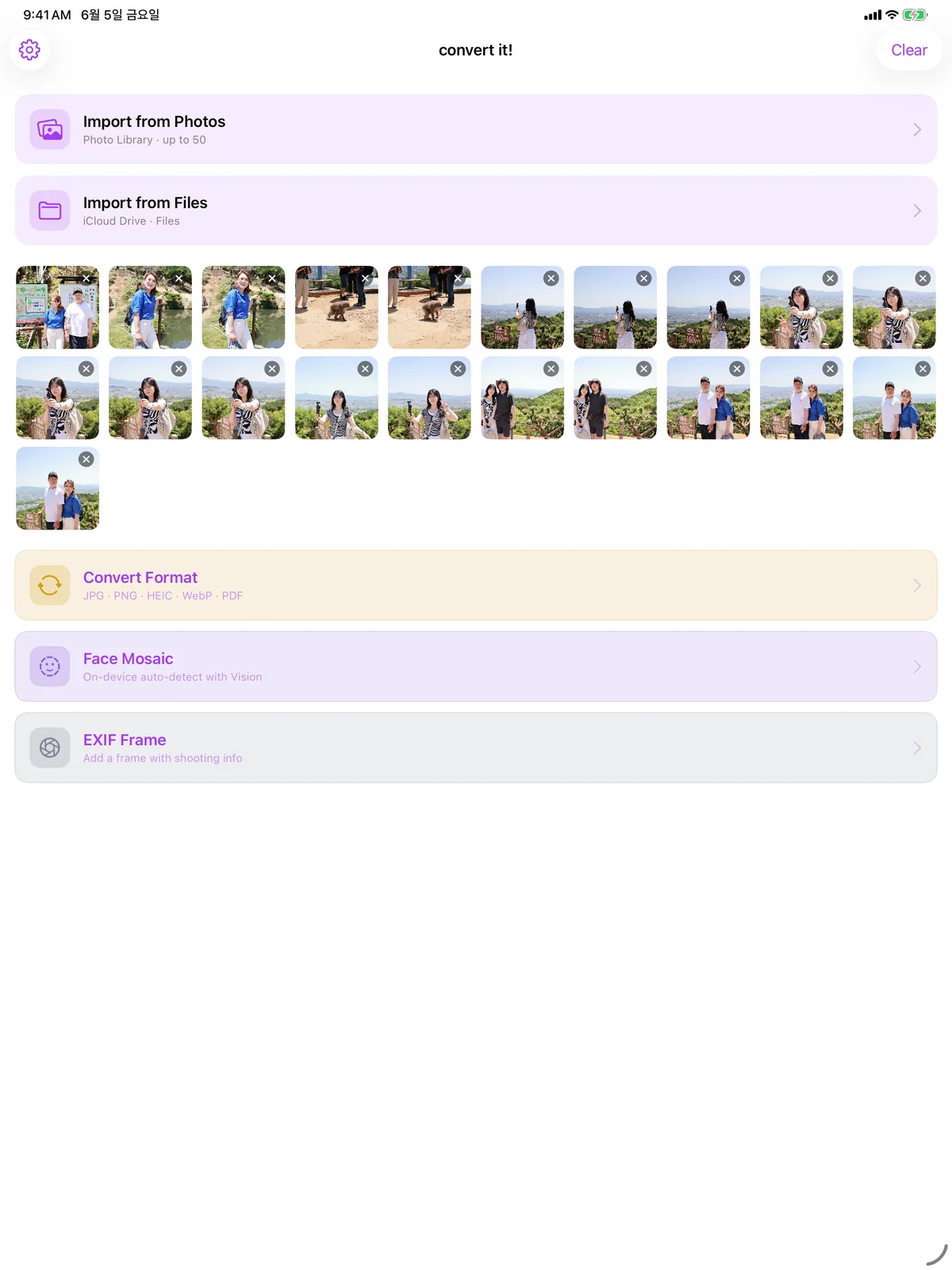
Pick up to 50 images from Photos, or several files from Files and Finder. One set of settings applies to the whole run, and the result screen collects everything it produced. Filenames follow the rule you chose in Settings, either the original name, a sequential number or a date stamp.
Up to 50 at a time
Photos hands over up to 50 images per pick, and the Files or Finder picker takes several files at once. Format, quality, resize and EXIF removal apply to the whole batch.
Save, share or ZIP
Send the results to Files or Finder, to the share sheet, or to Photos, which takes JPG, PNG, HEIC and TIFF. A run of two or more files also gets a ZIP export.
Convert Image in Shortcuts
The Convert Image action ships on iPhone, iPad and Mac, so a folder can go through Shortcuts or Spotlight. That action offers JPG, PNG, HEIC, TIFF and PDF, but not WebP.
Processing that stays on the device
There is no server to talk to. Files are read from what you picked, processed in the app's temporary folder, and written back out only through Photos, Files, Finder or a share sheet you choose.
No backend, no upload, no sign-in. On Mac, incoming and outgoing network are both off in the sandbox.
No sign-in and no account. Nothing syncs through iCloud or CloudKit.
No analytics or crash-reporting SDK is linked. libwebp, used for WebP, is the only third-party code.
One add-only permission
The app asks for permission to add images to Photos, which is what saving a result needs. Loading uses the system picker, which needs no permission at all.
Six values kept on device
The default format, the metadata default, the filename rule, the app language, a count of finished runs and the version that last asked for a review.
No other permission asked
No camera, microphone, location, contacts, calendar or notification permission. GPS is read from the picked file so it can be removed, never from the system.
iOS 17 · iPadOS 17 · macOS 14 · version 1.0.2
The price and what it covers
convert it! is a paid app with a single purchase. You buy it once on the App Store, and it runs on iPhone, iPad and Mac under the same Apple Account.
convert it!
$2.99One purchase
Universal purchase for iPhone, iPad and Mac
- Conversion, face mosaic, EXIF frames, batch runs and ZIP export are all included.
- The Convert Image action for Shortcuts and Spotlight comes with it on both systems.
- The interface is available in 20 languages, switchable in Settings.
- There is nothing to unlock later and nothing sold inside the app.
- The App Store shows the price set for each region. $2.99 is the United States price.
- Buying the app is the only payment. Nothing is sold inside it and nothing is billed later.
- Refunds are handled by Apple through the App Store.
Questions people ask before buying
Do I pay once, or is there something to unlock later?
Can I try it before paying?
Can I ask for an exact file size in megabytes?
Can the face mosaic miss someone?
Are my photos uploaded anywhere?
Do I have to buy it again for my Mac?
Documents and contact
Write about a bug, a file that would not convert, or anything in these documents. Purchases and refunds are handled by Apple through the App Store.